
Help

Getting started

Setting up a new account, the Dashboard and finding your way around Bilbee.

On this page
  1. Getting started
  2. Dashboard
  3. Getting around: the sidebar and Quick actions
  4. Ask Bilbee, the assistant
  5. Help and support

Getting started

A new account has a Getting started card in the sidebar with 4 steps, in any order. Each one ticks itself from what you've actually set up, so there's nothing to mark done.

Set up your business opens a short form: Business name, ABN (optional), whether you're Registered for GST, and your Time zone. Choose Set up business to save it. It ticks once the business has a name.

Add your bank details opens Settings on the Payments tab. It ticks once clients have a way to pay you: a BSB and account number, a PayID, or card payments switched on.

Brand your invoices opens Settings on the Branding tab. It ticks once you've added a logo, an accent colour or a theme.

Send your first invoice opens a new invoice. It ticks once any invoice leaves draft, whether you email it, mark it as sent or mark it paid.

You can minimise the card to a single line, or close it. Once closed, it comes back from Getting started in the menu under your name. It goes for good when every step is done.
Plans with it: every plan (Free, Standard and Pro).

Dashboard

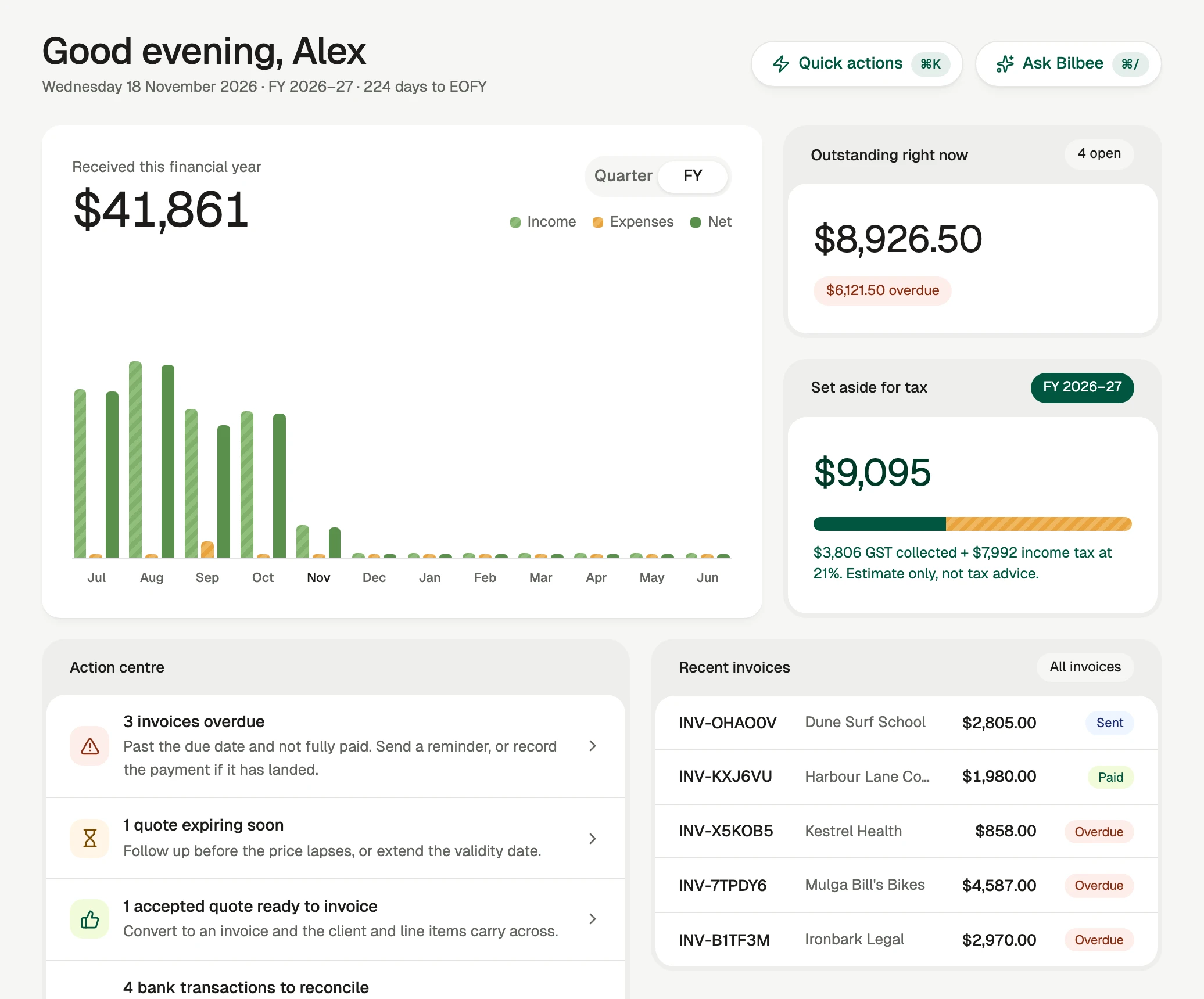
The Dashboard is your overview: money received, what's still owed, what to set aside for tax, anything waiting on you, and your latest invoices. Its heading greets you by name, with today's date and the days to EOFY under it.

The dashboard: money received this financial year as a monthly chart, what's outstanding and what's set aside for tax, with the Action centre and recent invoices below.

Received charts income, expenses and net for this Quarter or the whole FY. Outstanding counts the invoices still open and what's overdue, and each figure opens the Invoices list filtered to them.

Set aside for tax suggests what to keep aside for the ATO from what you've been paid: the GST you collected plus a share for income tax if you're registered for GST, or the income tax share alone if you're not. It's an estimate, not tax advice, and the rate is set in Tax setup.

Action centre lists what needs you, or says that nothing does. Recent invoices shows the latest invoices you've issued; drafts aren't listed there.

Plans with it: every plan (Free, Standard and Pro).

Getting around: the sidebar and Quick actions

The sidebar groups the screens by what the money is doing. Money in: Invoices, Quotes, Recurring, Timesheet, Clients and Documents. Money out: Expenses and Reconcile. Tax time: the tax page and the Tax guide. Set up: Products & services and Settings. The tax page is named for the statement you lodge: Tax & BAS, Tax & IAS, or just Tax.

The menu under your name has Account settings, the light or dark Theme, Help and support and Sign out.

Quick actions at the top of each page (⌘K on a Mac, Ctrl+K elsewhere) searches actions, clients and invoices from anywhere. Its create rows are New invoice, New quote, New expense, New client and Log time, and under them it lists your latest invoices and clients and your BAS or IAS quarter. When nothing matches, Enter searches your invoices.

Credit notes have no sidebar row: you make one from the invoice it corrects.

Plans with it: every plan (Free, Standard and Pro).

Ask Bilbee, the assistant

Ask Bilbee, beside Quick actions at the top of each page (⌘/ on a Mac, Ctrl+/ elsewhere), opens a panel where you ask about Bilbee or your books, such as who owes you money, how to record a payment or how deposits work. It reads your records to answer and knows the page you're on, so you can ask about the invoice in front of you. An empty panel suggests three questions for that page.

It also fills in invoices, quotes, clients and time for you to check, each as a card in the conversation: a draft opens in the builder, and a client or time entry is added when you press the card's button. Nothing is saved, or sent to a client, until you do. When it can't help, it can offer Ask a person, which opens Help and support with your question in the message box.

A question it couldn't answer isn't counted. On a plan without it, the panel says what it does and which plans have it.

What you ask, and the records it reads to answer, such as your clients, invoices, expenses and tax figures, go to Anthropic's Claude AI. Bilbee keeps no conversation: it's gone when you reload, sign out or choose New conversation. To turn it off, switch off Show Ask Bilbee in Settings, on the Defaults tab. Turned off, the button goes and nothing is sent.

Ask Bilbee is on the web. The phone app doesn't have it.

Questions to Ask Bilbee a month: none on Free; 300 on Standard; no limit on Pro.

Help and support

Help and support, in the menu under your name, has Common questions and a form to Send us a message: pick a Topic, write your Message and choose Send message. We reply to your account's email address, which needs to be confirmed first.

We can help with how Bilbee works. For advice on your own tax, your accountant has the final word.

Plans with it: every plan (Free, Standard and Pro).

Less admin. More time for your business.

Add your business details, send an invoice, record an expense. The estimate does the rest.

Start free

Free to start: five invoices a month, no card.